And, “You, Lord, in the beginning, laid the foundation of the earth. The heavens are the works of your hands. They will perish, but you continue. They all will grow old like a garment does. You will roll them up like a mantle, and they will be changed; but you are the same. Your years will not fail.”
Hebrews 1:10-12 (WEB)

C4C Ubuntu should be updated often; to squash bugs, keep up with new features, plug security holes… Update settings (security, feature, software, etc.) are managed in Menu > Settings > Software & Updates
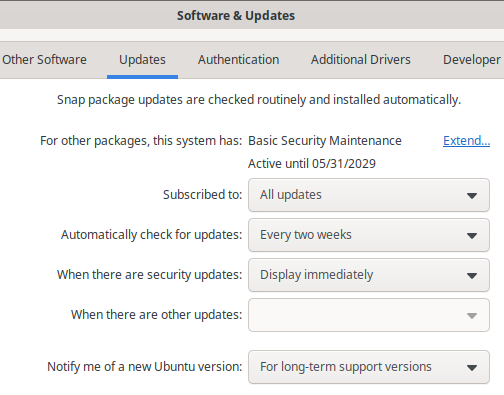
Update from the command-line
Open a Terminal [Ctrl]+[Alt]+[T] and type:
sudo apt update
will update apt’s knowledge about what’s changed in the repositories

apt list --upgradable
will show what’s available to be upgraded

sudo apt upgrade
will upgrade everything available to be upgraded – after confirmation

sudo apt upgrade -y
will upgrade everything available to be upgraded – without confirmation

sudo apt update && sudo apt upgrade
will combine two commands; updating apt’s knowledge about what’s changed in the repositories and then upgrading everything available to be upgraded – after confirmation

sudo apt update && sudo apt upgrade -y
will combine two commands; updating apt’s knowledge about what’s changed in the repositories and then upgrading everything available to be upgraded – without confirmation

Remove “No Longer Required” Packages Automatically Installed
Sometimes when installing or updating something you’ll be told The following packages were automatically installed and are no longer required:

Simply say no (n) and then copy sudo apt autoremove
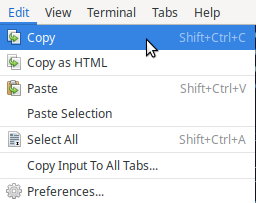
And paste where your cursor is, add a space, and repeat with every line
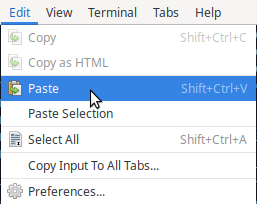
sudo apt autoremove

After removing the packages that were no longer required, you may hit the up arrow to repeat the previous command
Update with Synaptic Package Manager
Go to Menu > System > Synaptic Package Manager
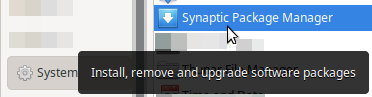
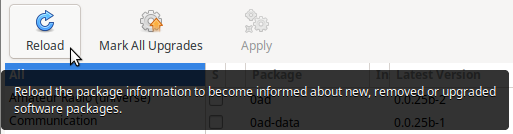
Click the [Reload] button
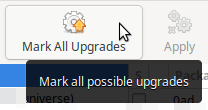
Click the [Mark All Upgrades] button
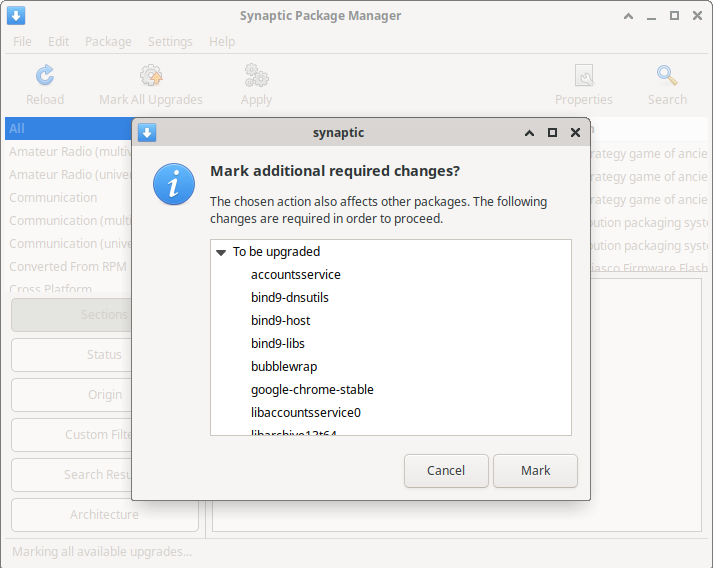
Click the [Mark] button
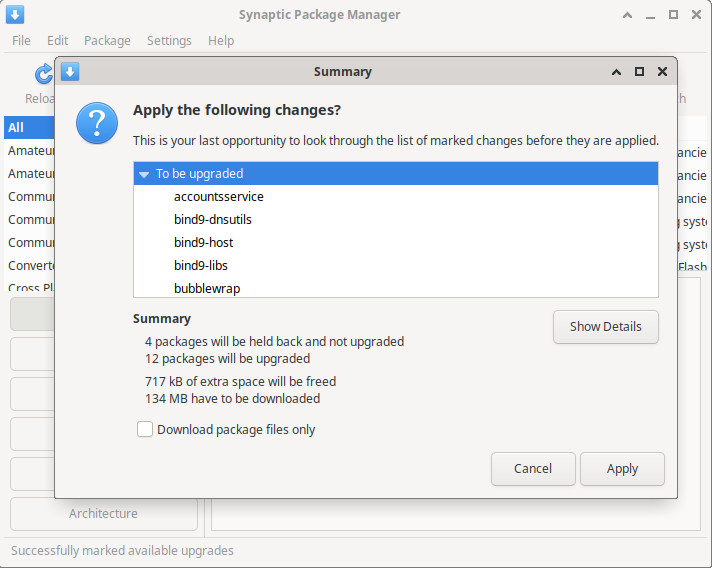
Click the [Apply] button

Upgrade C4C Ubuntu to 26.04
You must have already installed and be running C4C Ubuntu 24.04 when upgrading to 26.04
PREPARE THE SYSTEM
Open a Terminal [Ctrl]+[Alt]+[T] and update and upgrade everythingsudo apt update && sudo apt upgrade -y
Avoids most dependency issues and software conflicts
Scroll up to view, copy and remove “No Longer Required” Packages
A “best practice” to ensure a clean upgrade environment
Disable Lock Screen / Screen Blanking / Screensaver
Avoids the upgrade process from becoming stuck or interrupted
Create a local upgrade filesudo mousepad /etc/apt/apt.conf.d/local
Type (or copy and paste) the following line into itDpkg::Options { "--force-confold"; }
Keeps apt from asking you to overwrite (C4C modified) config files
Save and close file
UPGRADE TO C4C UBUNTU 26.04
In a Terminal, type (or copy and paste) the following linesudo do-release-upgrade -d DistUpgradeViewNonInteractive
This will mostly automate the upgrade (not ask quite so many questions)
Please install all available updates for your release before upgrading
Give the upgrade command to see what’s been held backsudo apt-get upgrade
The following packages have been kept back:
example-pkg1
example-pkg2sudo apt install example-pkg1 example-pkg2
This forces apt to install the dependencies for those specific packages
Try the upgrade command again
The following unofficial packages are currently installed:
example-pkg1
example-pkg2
Unofficial packages may cause conflicts during the upgrade.
You can always try re-installing needed packages after upgrading
Continue [yN]n
Copy each package listed and add to the following commandsudo apt remove --purge example-pkg1 example-pkg2 -y
Try the upgrade command again

Update SWORD Project modules (Biblical Texts, Commentaries, Dictionaries, etc.) used by Xiphos, Bible Time, Ezra Bible App, and Diathek
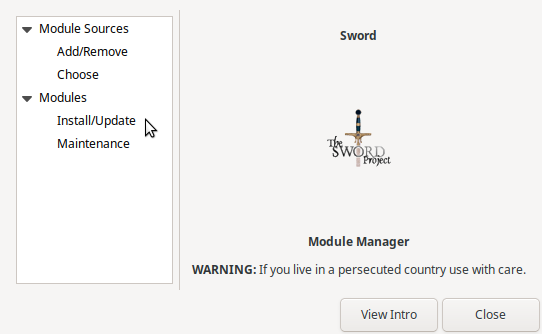
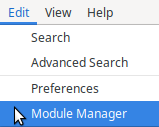
Go to Menu > Education > Xiphos Bible Guide, and in Xiphos, go to Edit > Module Manager
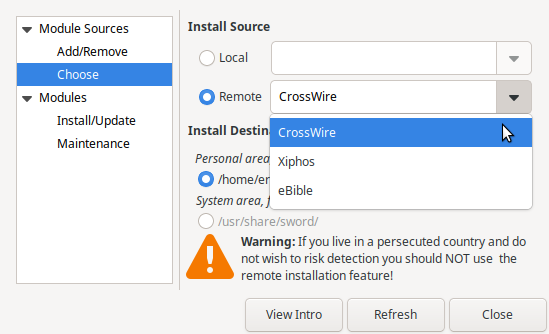
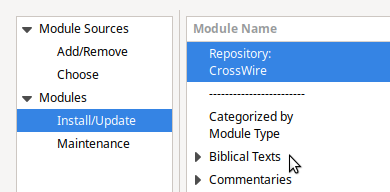
Under Module Sources, click Choose and then select the first Remote Module Source from the drop-down menu; CrossWire. Note, the same instructions below apply to other remote sources / repositories, Xiphos and eBible, and any others you add.
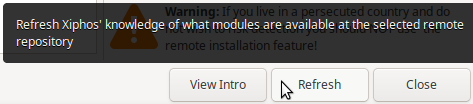
Refresh Xiphos’ knowledge of what modules are available
Under Modules, click Install/Update and then choose Biblical Texts
Notice in this example, the installed version of the KJV Bible is 2.9 but 2.10.2 is available
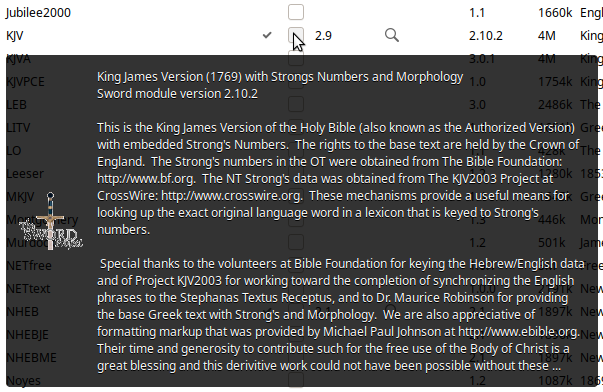
Check the check box next to the installed version of this module

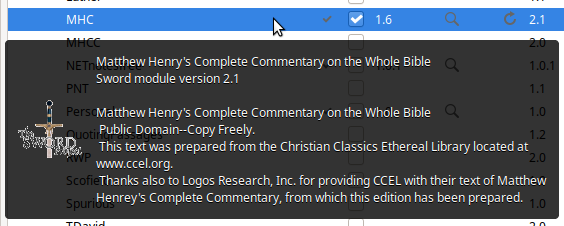
Under Commentaries, check the check box next to MHC
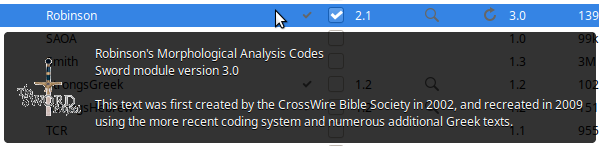
Under Dictionaries, check the check box next to Robinson’s Morphological Analysis Codes
Click the [Install] button
![Click the [Install] button](https://computers4christians.org/wp-content/uploads/2022/06/Update-SWORD-Modules-X-10.png "Click the [Install] button")
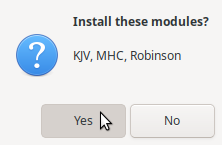
Click the [Yes] button to update KJV, MHC and Robinson to the newest versions
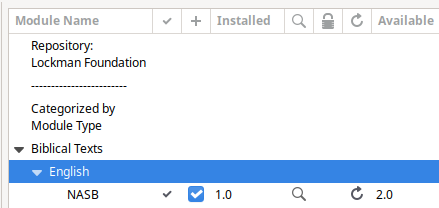
Update the generously donated New American Standard Bible
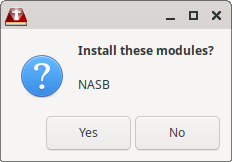
Click the [Yes] button to update the NASB (2020)
You may also pick a specific repository…
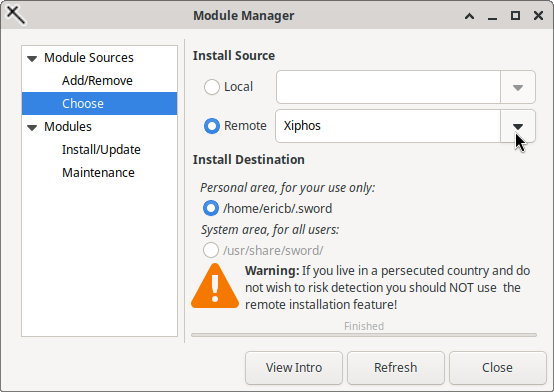
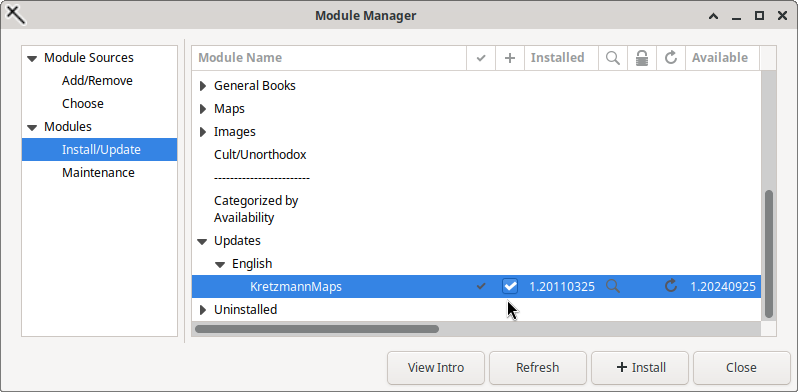
And go straight to any available Updates (no drop-down triangle means no updates)
UPDATE UBUNTU How to List Installed Packages on Ubuntu on phoenixNAP, Ubuntu upgrade or update a single package using apt-get on nixCraft, How to update Ubuntu using APT in the terminal on PragmaticLinux and How to Use the apt Command to Manage Ubuntu Packages on hostadvice. UPGRADE UBUNTU How to Upgrade to Xubuntu 26.04 LTS Safely on Ubuntu Free and Upgrading to Xubuntu 26.04 on Xubuntu.org SWORD MODULES SWORD Module Add-ins on CrossWire and Xiphos Module Manager on Xiphos Documentation.
